Introduction to Business computing
Session03
Introduction to the spreadsheet Excel
The general look and feel : we are familiar with most of the items of the menu bar, standard toolbar and formatting toolbar
What is the same and what changed in the three principal bars
What is a spreadsheet, what is it for
Dan Bricklin, Bob Frankston and VisiCalc
Cells, rows, columns
A cell has three characteristics :
- Its address
- Its content. It can be :
- A number (for instance : 12 )
- A chain of characters (for instance : Eastern sales for the month of
February )
- A formula (for instance : =C2*D5 )
- Its name (the default name is the address)
Result display vs formula display :
- to see the formula in a cell, select the cell and press F2
- it is also possible to see all the formulas in all the cells at the same
time (tools -> options -> display -> display formulas)
Basic calculations
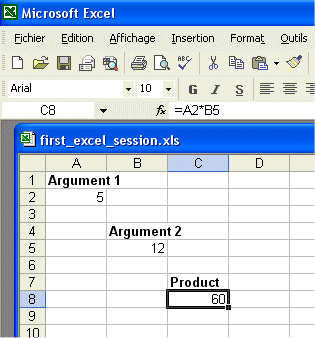
- In the above sheet, the cell contents are :
- A1 : the chain of characters Argument 1
- A2 : the number 5
- B4 : the chain of characters Argument
2
- B5 : the number 12
- C7 : the chain of characters Product
- C8 : the formula =A2*B5, but here we view the result of the formula,
namely the number 60
- To view the formula itself contained in the cell C8, select the cell and
press F2
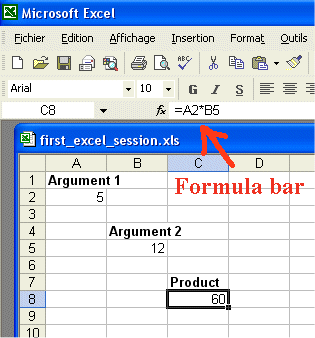
- We can also readily see the formula in C8 by selecting C8 and looking into
the formula bar
Several sheets
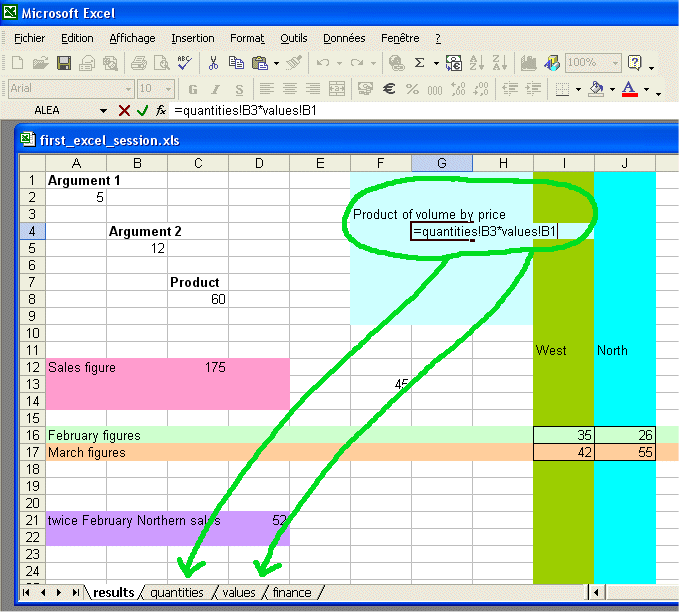
- In this spreadsheet we created four sheets named results, quantities,
values, and finance
- In the cell G4 of the sheet "results" we entered a formula
that calls for the cell B3 of the sheet "quantities", and the cell B1 of the
sheet "values". The formula multiplies them, the result (which is not displayed here, since we display
the formula) is 175
Naming cells
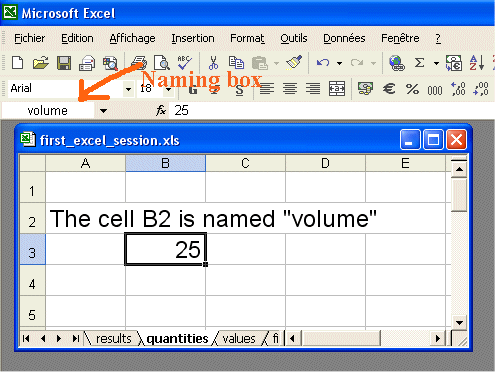
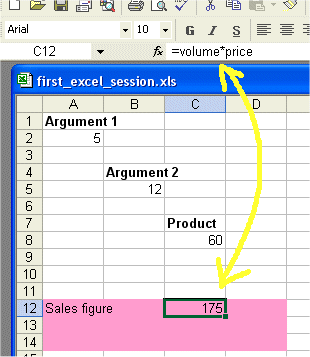
- In the sheet "quantities" we renamed the cell B3 "volume" (see the Naming
box)
- So now in the whole four sheets one cell is named "volume" : it is cell B3
of the sheet "quantities"
- Similarly we renamed "price" the cell B1 of the sheet "values".
- The content of "volume" is 25
- The content of "price" is 7
- Therefore wherever we enter the formula "=volume*price" we shall get :
175. See below
Naming entire columns and rows
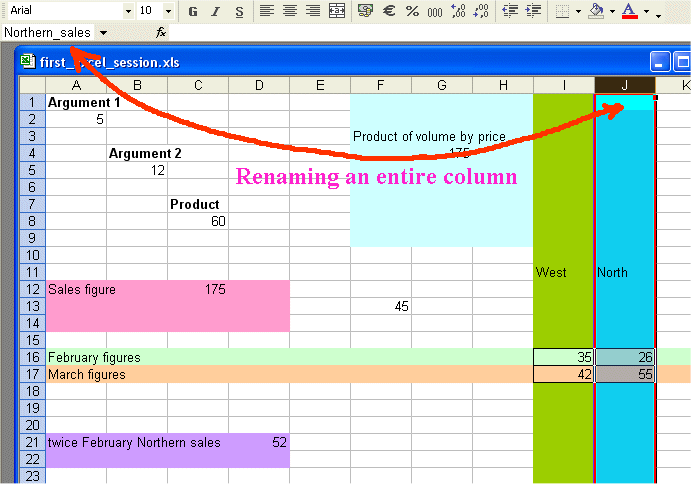
- Above we renamed the entire column J "Northern_sales" (no blanks in
names)
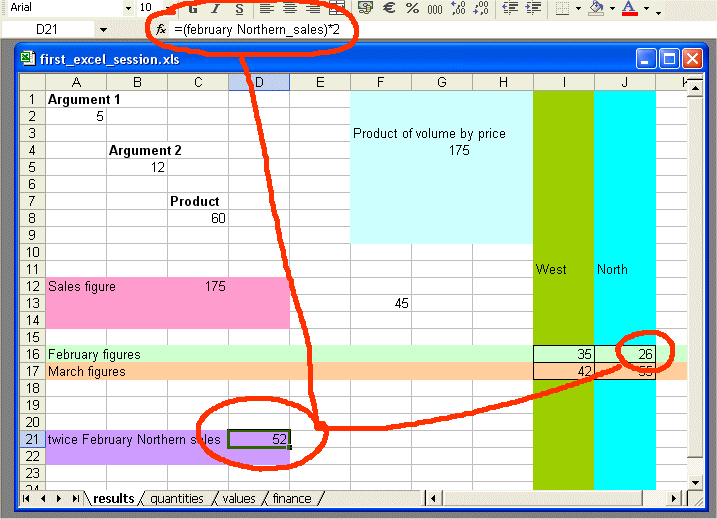
- We also renamed the entire row 16 "february"
- In cell D21 we entered the formula "=(february Northern_sales)*2"
(do not type the quotes), therefore we obtain the result 52
Using Excel in a financial example
The deal to examine :
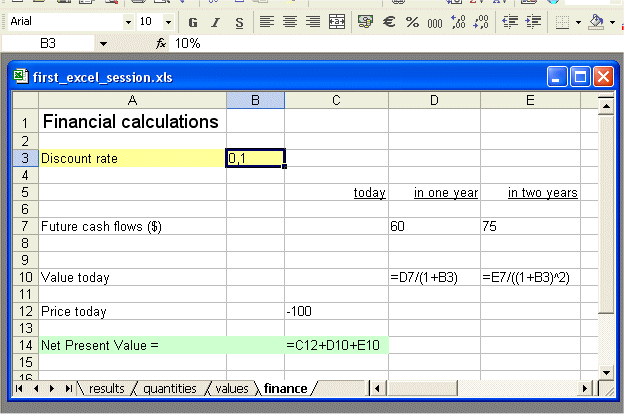
- We are offered to pay $100 today, in order to receive $60 (cell D7) in one
year and another $75 (cell E7) in two years. These two future payments are not
sure, so we "discount" them to evaluate "their equivalent value today"
- The discount rate we shall use to discount the "future money" is 10% each
year (cell B3)
- Is it a good deal ?
Here is how we set up our spreadsheet :
- In D10 we enter the "present value" of the $60 to be received in one year.
The calculation is 60 / (1 + 10%), but since we want to have the correct
result whatever are the inputs, we enter the formula "=D7/(1+B3)"
(do not type the quotes), that way the result stays correct if we change 60
into another figure.
- In E10 we enter the formula for the present value of $75 in two years.
With the actual numbers we use it is 75 / [ (1+10%)2 ] . But we
want this result to hold correct even if we change the content of B3, of E7,
so we enter the formula "=E7/((1+B3)^2)" (do not type the quotes)
- With actual numbers we entered as inputs, the Net Present Value of this
deal is -100 + 54,55 + 61,98 .
- This is equal to $16,53 . That is the deal we are offered is like
exchanging today $100 for $116,53 received today too. Definitely a good
deal !
The further question :
- Up to which discount rate is the deal still good ?
- (Discount rates measure the risk of future cash flows - in a way we will
study next year.)
- Let's use Excel to try out various contents in the cell B3
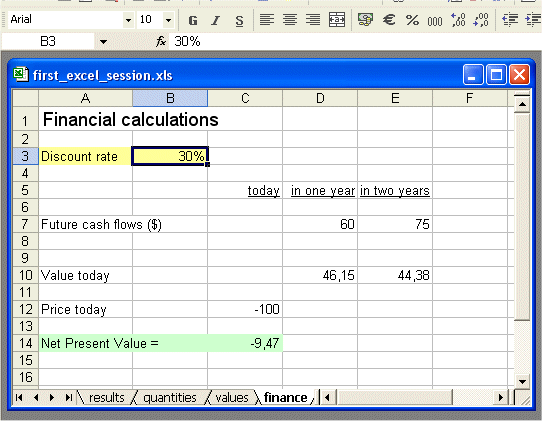
- for instance we see that at a discount rate of 30% the Net Present Value
of the deal is negative (-$9,47)
- so the discount rate for which the NPV is zero is somewhere between 10%
and 30%
- Try various values to find out precisely the one the makes the NPV equal
to zero.
- This illustrates the usefulness of Excel (it is exactly for this kind of
repetitive calculations that VisiCalc was invented in the late 70's)
Miscellaneous : copying, lists, navigating
- Simple copy and elaborate copy : repeat January twelve times, or create "January to December"
- Create a list of chinese cities
- Navigating within the sheet (Go to : ctrl + T)
- Going to a cell or a group of cells by calling its name
Formatting
Automatic formatting
Conditional formatting
Font police, size, color, etc.
Adjust width of columns and height of rows
Borders
Format of numbers : standard, decimal, monetary, etc.
Merging cells
Windowing : to view different parts of a large sheet
A second example
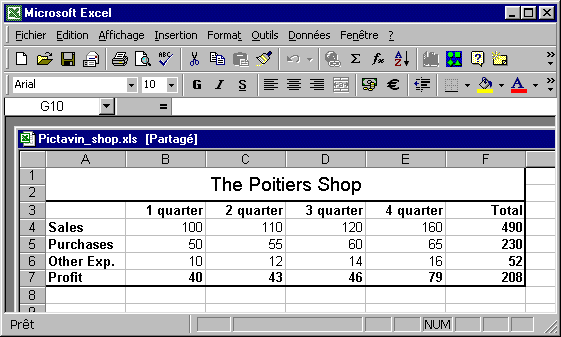
A quarter by quarter income statement
More on the "copy" action and its various possibilities
The concept of parameters
Copying/pasting using the $ sign (to keep the proper reference to a parameter)
Column totals
Rows totals
Automatic sum
Varying the parameters : the power of a spreadsheet
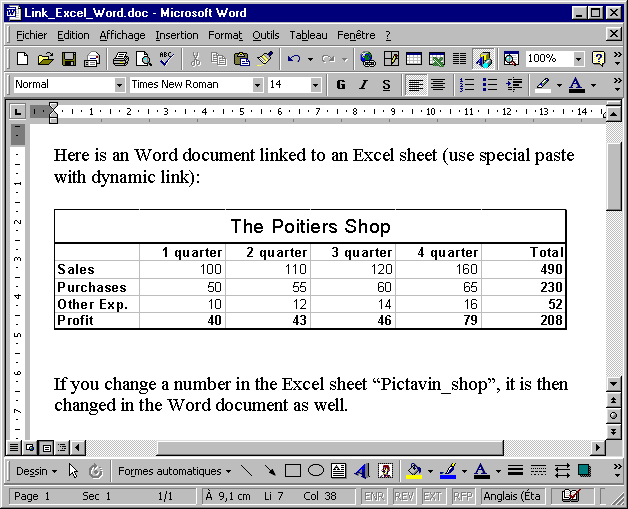
Dynamic link between an Excel sheet and a word document : copying an
Excel table and pasting it into a Word document, in such way that when we change
the figures in Excel they are changed in Word (Special paste with dynamic link)
Excel side :
Word side :
Saving
Standard saving
Save… as…
Renaming, and different format
Save as a web page (HTML format)
Printing
Set parameters : the various choices
Area to print : define, cancel
Preview
Print